

This tutorial walks you through creating an Angular monorepo with Nx. You'll build a small example application to understand the core concepts and workflows.
What you'll learn:
- How to structure multiple Angular apps and libraries in a single repository
- How Nx caching speeds up your local development and CI pipelines
- How to run builds, tests, and serve commands efficiently across multiple projects
- How to share UI components and utilities between Angular applications
- How to fix CI failures directly from your editor with Nx Cloud
Prerequisite: Tutorial setup
Section titled “Prerequisite: Tutorial setup”This tutorial requires Node.js (v20.19 or later) installed on your machine.
Step 1: Creating a new Nx Angular workspace
Section titled “Step 1: Creating a new Nx Angular workspace”Run the following command to create a new Nx workspace with the Angular template:
npx create-nx-workspace@latest my-nx-repo --template=nrwl/angular-templateOr create your workspace in the browser with CI pre-configured.
Step 2: verify your setup
Section titled “Step 2: verify your setup”Once the workspace is created, navigate into it and install dependencies:
cd my-nx-reponpm installExplore the Nx workspace setup
Section titled “Explore the Nx workspace setup”Let's take a look at the structure of our new Nx workspace:
Directorymy-nx-repo/
Directoryapps/
Directoryapi/
- …
Directoryshop/
- …
Directoryshop-e2e/
- …
Directorylibs/
Directoryapi/
- …
Directoryshared/
- …
Directoryshop/
- …
- eslint.config.mjs
- nx.json
- package-lock.json
- package.json
- tsconfig.base.json
- vitest.workspace.ts
The nx.json file contains configuration settings for Nx itself and global default settings that individual projects inherit.
Now, let's build some features and see how Nx helps get us to production faster.
Serving the app
Section titled “Serving the app”To serve your new Angular app, run:
npx nx serve shopThe app is served at http://localhost:4200.
You can also use npx nx run shop:serve as an alternative syntax. The <project>:<task> format works for any task in any project, which is useful when task names overlap with Nx commands.
Project configuration
Section titled “Project configuration”The project tasks are defined in the project.json file.
{ "name": "shop", ... "targets": { "build": { ... }, "serve": { ... }, "extract-i18n": { ... }, "lint": { ... }, "test": { ... }, "serve-static": { ... }, },}Each target contains a configuration object that tells Nx how to run that target.
{ "name": "shop", ... "targets": { "serve": { "executor": "@angular/build:dev-server", "defaultConfiguration": "development", "options": { "buildTarget": "shop:build" }, "configurations": { "development": { "buildTarget": "shop:build:development", "hmr": true }, "production": { "buildTarget": "shop:build:production", "hmr": false } } }, ... },}The most critical parts are:
executor- this is of the syntax<plugin>:<executor-name>, where thepluginis an NPM package containing an Nx Plugin and<executor-name>points to a function that runs the task.options- these are additional properties and flags passed to the executor function to customize it
To view all tasks for a project, look in the Nx Console project detail view or run:
npx nx show project shopshop
Root: apps/shop
Type:Application
Targets
build
@angular/build:application
Cacheable
Modularization with local libraries
Section titled “Modularization with local libraries”When you develop your Angular application, usually all your logic sits in the app's src folder. Ideally separated by various folder names which represent your domains or features. As your app grows, however, the app becomes more and more monolithic, which makes building and testing it harder and slower.
Directorymy-nx-repo/
Directoryapps/
Directoryshop/
Directorysrc/
Directoryapp/
- …
Directorycart/
- …
Directoryproducts/
- …
Directoryorders/
- …
Directoryui/
- …
Nx allows you to separate this logic into "local libraries." The main benefits include
- better separation of concerns
- better reusability
- more explicit private and public boundaries (APIs) between domains and features
- better scalability in CI by enabling independent test/lint/build commands for each library
- better scalability in your teams by allowing different teams to work on separate libraries
Create local libraries
Section titled “Create local libraries”Let's create a reusable design system library called ui that we can use across our workspace. This library will contain reusable components such as buttons, inputs, and other UI elements.
npx nx g @nx/angular:library libs/ui --unitTestRunner=vitestNote how we type out the full path in the command to place the library into a subfolder. You can choose whatever folder structure you like to organize your projects.
Running the above command should lead to the following directory structure:
Directorymy-nx-repo/
Directoryapps/
Directoryshop/
- …
Directorylibs/
Directoryui/
- …
- eslint.config.mjs
- nx.json
- package.json
- tsconfig.base.json
- vitest.workspace.ts
Just as with the shop app, Nx automatically infers the tasks for the ui library from its configuration files. You can view them by running:
npx nx show project uiIn this case, we have the lint and test tasks available, among other inferred tasks.
npx nx lint uinpx nx test uiImport libraries into the shop app
Section titled “Import libraries into the shop app”All libraries that we generate are automatically included in the TypeScript path mappings configured in the root-level tsconfig.base.json.
{ "compilerOptions": { ... "paths": { "@org/ui": ["libs/ui/src/index.ts"] }, ... },}Hence, we can easily import them into other libraries and our Angular application.
You can see that the Ui component is exported via the index.ts file of our ui library so that other projects in the repository can use it. This is our public API with the rest of the workspace and is enforced by the library's build configuration. Only export what's necessary to be usable outside the library itself.
export * from './lib/ui/ui';Let's add a simple Hero component that we can use in our shop app.
import { Component, Input, Output, EventEmitter } from '@angular/core';import { CommonModule } from '@angular/common';
@Component({  selector: 'lib-hero',  standalone: true,  imports: [CommonModule],  template: `    <div [ngStyle]="containerStyle">      <h1 [ngStyle]="titleStyle">{{ title }}</h1>
      <p [ngStyle]="subtitleStyle">{{ subtitle }}</p>      <button (click)="handleCtaClick()" [ngStyle]="buttonStyle">        {{ cta }}      </button>    </div>  `,})export class Hero {  @Input() title!: string;  @Input() subtitle!: string;  @Input() cta!: string;  @Output() ctaClick = new EventEmitter<void>();
  containerStyle = {    backgroundColor: '#1a1a2e',    color: 'white',    padding: '100px 20px',    textAlign: 'center',  };
  titleStyle = {    fontSize: '48px',    marginBottom: '16px',  };
  subtitleStyle = {    fontSize: '20px',    marginBottom: '32px',  };
  buttonStyle = {    backgroundColor: '#0066ff',    color: 'white',    border: 'none',    padding: '12px 24px',    fontSize: '18px',    borderRadius: '4px',    cursor: 'pointer',  };
  handleCtaClick() {    this.ctaClick.emit();  }}
Then, export it from index.ts.
export * from './lib/hero/hero';export * from './lib/ui/ui';We're ready to import it into our main application now.
import { Component } from '@angular/core';import { RouterModule } from '@angular/router';import { NxWelcome } from './nx-welcome';// importing the component from the libraryimport { Hero } from '@org/ui';
@Component({  selector: 'app-root',  standalone: true,  imports: [RouterModule, NxWelcome, Hero],  templateUrl: './app.html',  styleUrl: './app.css',})export class App {  protected title = 'shop';}
Now update the template file to use the Hero component:
<lib-hero title="Welcmoe shop" subtitle="Build something amazing today" cta="Get Started"></lib-hero><router-outlet></router-outlet>Serve your app again (npx nx serve shop) and you should see the new Hero component from the ui library rendered on the home page.
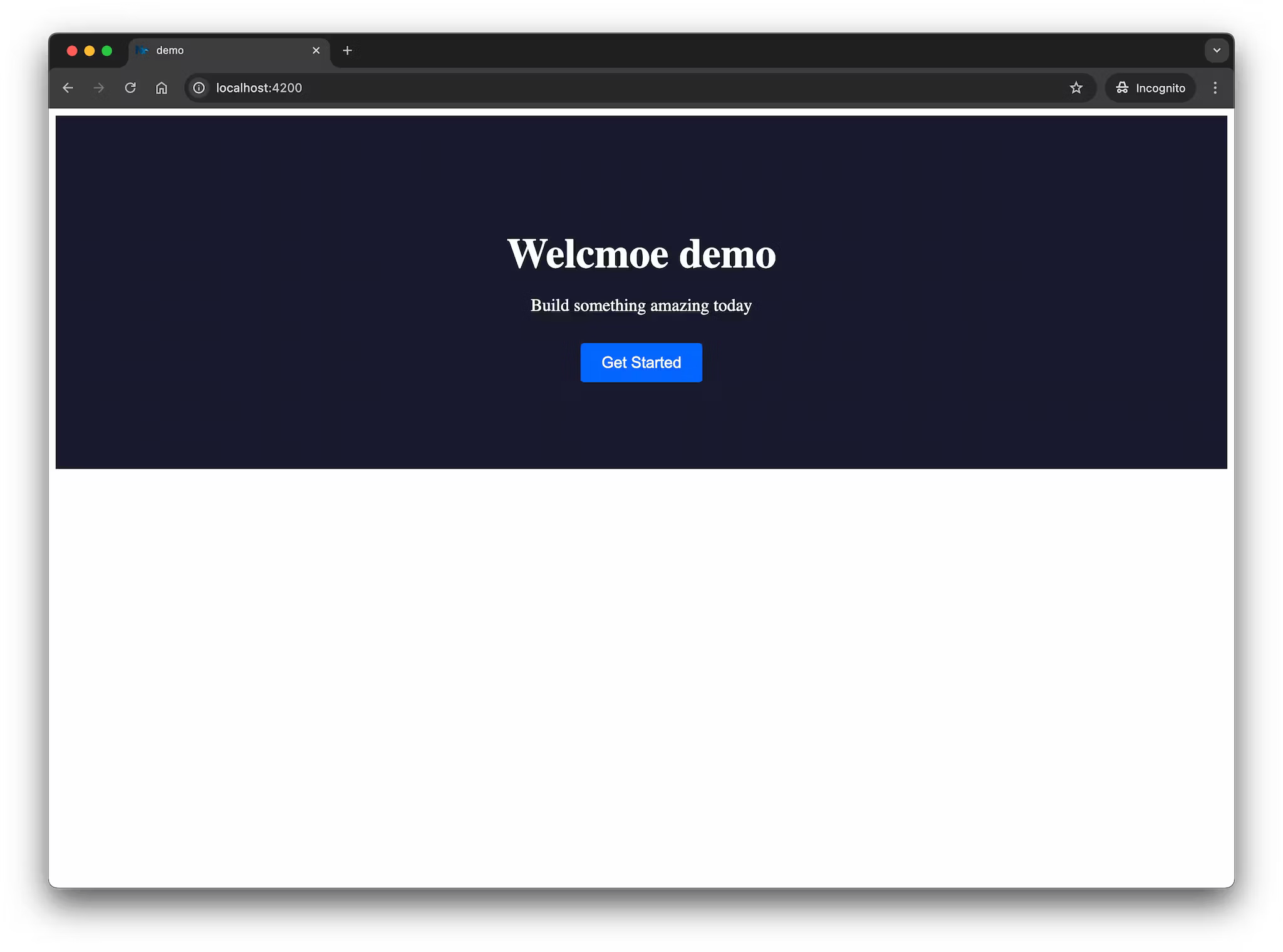
If you have keen eyes, you may have noticed that there is a typo in the App component. This mistake is intentional, and we'll see later how Nx can fix this issue automatically in CI.
Visualize your project structure
Section titled “Visualize your project structure”Nx automatically detects the dependencies between the various parts of your workspace and builds a project graph. This graph is used by Nx to perform various optimizations such as determining the correct order of execution when running tasks like npx nx build, identifying affected projects and more. Interestingly, you can also visualize it.
Just run:
npx nx graphYou should be able to see something similar to the following in your browser.
Let's create a git branch with the new hero component so we can open a pull request later:
git checkout -b add-hero-componentgit add .git commit -m 'add hero component'Testing and linting - running multiple tasks
Section titled “Testing and linting - running multiple tasks”Our current setup not only has targets for serving and building the Angular application, but also has targets for unit testing, e2e testing and linting. The test and lint targets are defined in the application project.json file. We can use the same syntax as before to run these tasks:
npx nx test shop # runs the tests for shopnpx nx lint ui # runs the linter on uiMore conveniently, we can also run tasks in parallel using the following syntax:
npx nx run-many -t test lintThis is exactly what is configured in .github/workflows/ci.yml for the CI pipeline. The run-many command allows you to run multiple tasks across multiple projects in parallel, which is particularly useful in a monorepo setup.
There is a test failure for the shop app due to the updated content. Don't worry about it for now, we'll fix it in a moment with the help of Nx Cloud's self-healing feature.
Local task cache
Section titled “Local task cache”One thing to highlight is that Nx is able to cache the tasks you run.
Note that all of these targets are automatically cached by Nx. If you re-run a single one or all of them again, you'll see that the task completes immediately. In addition, (as can be seen in the output example below) there will be a note that a matching cache result was found and therefore the task was not run again.
   ✔  nx run ui:lint   ✔  nx run ui:test   ✔  nx run shop:lint   ✖  nx run shop:test
—————————————————————————————————————————————————————————————————————————————————————————————————————————
 NX   Ran targets test, lint for 2 projects (1s)
   ✔  3/4 succeeded [3 read from cache]
   ✖  1/4 targets failed, including the following:
      - nx run shop:test
Again, the shop:test task failed, but notice that the remaining three tasks were read from cache.
Not all tasks might be cacheable though. You can configure the cache settings in the targetDefaults property of the nx.json file. You can also learn more about how caching works.
Next steps
Section titled “Next steps”Here are some things you can dive into next:
- Set up CI with remote caching and self-healing
- Read more about how Nx compares to the Angular CLI
- Learn more about the underlying mental model of Nx
- Learn about popular generators such as how to setup Tailwind
- Learn how to migrate your existing Angular CLI repo to Nx
- Learn about enforcing boundaries between projects
- Setup Storybook for our shared UI library
Also, make sure you
- ⭐️ Star us on GitHub to show your support and stay updated on new releases!
- Join the Official Nx Discord Server to ask questions and find out the latest news about Nx.
- Follow Nx on Twitter to stay up to date with Nx news
- Read our Nx blog
- Subscribe to our Youtube channel for demos and Nx insights